Audi CarPlay Installation Guide - Step by Step for All MMI Systems
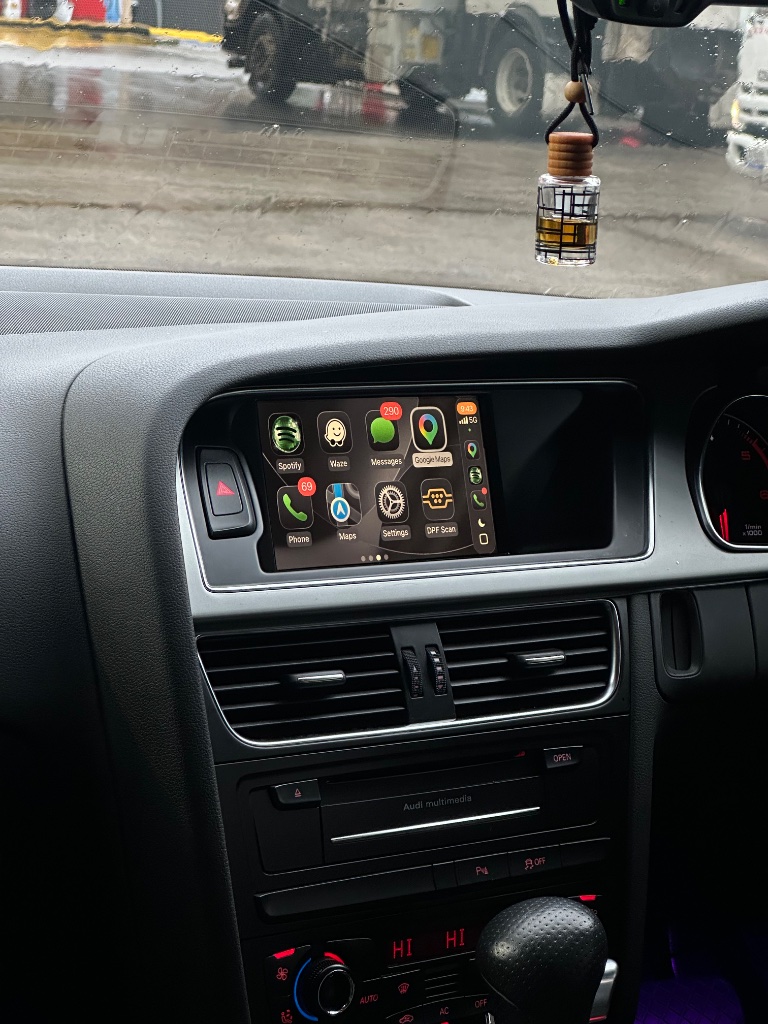
This is the complete Audi CarPlay installation guide covering MMI 2G, 3G and 3G+ systems. Whether you have an Audi A3, A4, A5, A6, Q5, Q7 or another model, this guide walks through the installation step by step - with the most common mistakes to avoid and what to do if something doesn't work first time.
Before you start - what you need
- Trim removal tools (plastic pry tools - avoid metal to prevent scratching)
- Torx screwdriver set (T10, T20, T25 most common)
- Phillips screwdriver
- Your CarPlay kit and harness (included with every order from audicarplay.com)
- Your phone (to test CarPlay before reassembling)
- Good lighting
No other tools required. No coding software, no OBD adapters, no VCDS access.
Step 1 - Identify your MMI system
Before starting, confirm which MMI system you have. This determines which harness and module you'll use.
- Plain rotary dial, no touchpad: MMI 3G
- Rotary dial with smooth touchpad surface: MMI 3G+
- Small screen, older look: MMI 2G
If you're unsure, we confirm your MMI system from the dashboard photo you upload when ordering. Check the kit contents against the label on the harness before starting.
Step 2 - Access the MMI control unit
For most Audi models, the MMI control unit is located behind the glove box on the passenger side. Here's how to access it:
- Open the glove box fully. Squeeze the sides to release the damper clips and let it hang down.
- Locate and remove the Torx screws holding the glove box surround in place. Typically 4–6 screws (T20 or T25). Keep them together - they're easy to lose.
- Gently pull the glove box surround away. It clips in at several points. Use a trim tool to release each clip carefully - no force needed.
- The MMI control unit is now visible. It's a rectangular aluminium box with multiple harness connectors on one end. On most models it's mounted on the passenger-side firewall or A-pillar area.
Step 3 - Connect the CarPlay harness (MMI 3G and 3G+)
This is the core step. It's simpler than it sounds - all connectors are keyed, meaning they only fit correctly.
- Identify the correct connectors on the MMI box. Your installation guide (included with the kit) shows exactly which connectors to use for your specific MMI version.
- Unplug the factory connectors from the MMI box. Press the release tab and pull - no tools needed. They should release smoothly.
- Plug the factory connectors into the matching sockets on the CarPlay harness. Each one clicks into place.
- Plug the other end of the CarPlay harness back into the MMI box. Again, each connector clicks in and only fits the correct socket.
- Connect the CarPlay module to the harness using the remaining connector.
Nothing is cut. Nothing is permanently modified. If you disconnect the harness, the car returns to factory spec immediately.
Step 4 - Mount the CarPlay module
The CarPlay module (roughly the size of a smartphone) mounts in the void behind the dash - invisible from the interior. Use the included adhesive pads or cable ties to secure it to a flat surface. Ensure it's not in contact with any moving parts (like the blower motor) and has some airflow around it.
Step 5 - Test before reassembly
Always test before reassembling. This is the step most first-time installers skip - don't.
- Reconnect the car battery if you disconnected it.
- Insert the key and turn ignition to ACC or start the car.
- Press the MEDIA button on the MMI.
- A CarPlay option should appear in the input sources.
- On your iPhone, go to Settings → General → CarPlay and select your Audi.
- Verify the CarPlay interface appears on screen.
- Test audio through steering wheel controls.
- Test reverse camera (shift into reverse).
If everything works, proceed to reassemble. If not, check all harness connections are fully clicked in before troubleshooting further.
Step 6 - Reassemble
Reverse the disassembly process. Replace the glove box surround, reinstall the screws, and close the glove box. Total reassembly: 10–15 minutes.
Common installation mistakes to avoid
- Not testing before reassembly. If there's a loose connection, it's far easier to fix before everything is clipped back in.
- Forcing connectors. All connectors click in smoothly. If it needs force, something is misaligned - don't push harder.
- Rushing trim removal. Plastic clips break easily if pulled at the wrong angle. Take your time.
- Not securing the module. A loose module can rattle or move against other components. Use the included adhesive pads.
Need help during installation?
Our team is available by email during the installation. We typically respond within 1 hour during business hours. Contact support →
Ready to order? Get your kit at audicarplay.com - $649 AUD →
Ready to add CarPlay to your Audi?
We confirm your exact car before dispatch. If it isn’t compatible, you get a full refund.
See the Audi CarPlay kitRelated articles
Installation
Audi A4 B8 CarPlay Installation Walkthrough - Step by Step
Installation
Audi CarPlay Retrofit Installation: What to Expect (Step-by-Step)
Support
Audi MMI Keeps Restarting or Freezing After CarPlay — Step-by-Step Fix
Model Guide
Audi A5 CarPlay Upgrade - MMI 3G and 3G+ Installation Guide
Guide
Common Audi MMI Upgrade Questions Answered by Real Installers
Installation
Audi CarPlay Installation: How Long It Really Takes